License
Seoul Robotics' SENSR-I is a licensed software and can only be operated with a valid license. Therefore, it is necessary to go through the following steps before launching SENSR-I. For advanced license management, please visit Advanced license management.
Install and Activate License Server
info
If you have Discovery kit (LPU with SENSR-I pre-installed), you may skip this procedure.
caution
Make sure you have an active internet connection during the installation process. No internet connection required after installation is complete.
License Server
The license server reads the validity of the license file and the available functions listed inside, and communicates with the SENSR-I instance to inform whether it is available or not. For stability and speed, Seoul Robotics recommends installing the license server on the target LPU to use SENSR-I, but installing the license server on a separate remote computer and communicating with SENSR-I is also supported.
Ubuntu is the recommended environment to install the license server. If you want to install the license server on linux distribution other than ubuntu, please contact support@seoulrobotics.org
How to Install and Activate License Server
Follow steps below.
- Get License Server installation file from Seoul Robotics' Support Enginner.
- Extract downloaded
.tarfiletar -xvf dist.tar - Install license server with following command
cd ./dist
sh ./install.sh - If the installation is successful, the License Server is automatically activated and added as a system service. Also,
license_id.jsonfile is created in the path,~/seoulrobotics/licenses/. This file will be converted into a valid license file usable on the machine where the License Server is installed - (Optional) Check License Server running correctly
$ sudo systemctl status license_server.service
● license_server.service - Seoul Robotics License Server
Loaded: loaded (/etc/systemd/system/license_server.service; disabled; vendor preset: enabled)
Active: active (running) since Mon 2022-06-20 14:54:39 KST; 1s ago
Main PID: 4810 (license_server)
    Tasks: 1 (limit: 4915)
CGroup: /system.slice/license_server.service
        └─4810 /usr/local/bin/license_server
For your information, if you follow all the steps above, the License Server is running normally, but SENSR-I cannot be executed because a valid license file does not exist under ~/seoulrobotics/licenses/. Follow next step.
Get your License Portal account ready
info
If you have Discovery kit (LPU with SENSR-I pre-installed), you may skip this procedure.
To get gain access to the license portal, please follow the steps below:
- Retreive the automatic email sent by Seoul Robotics containing your temporary credentials.
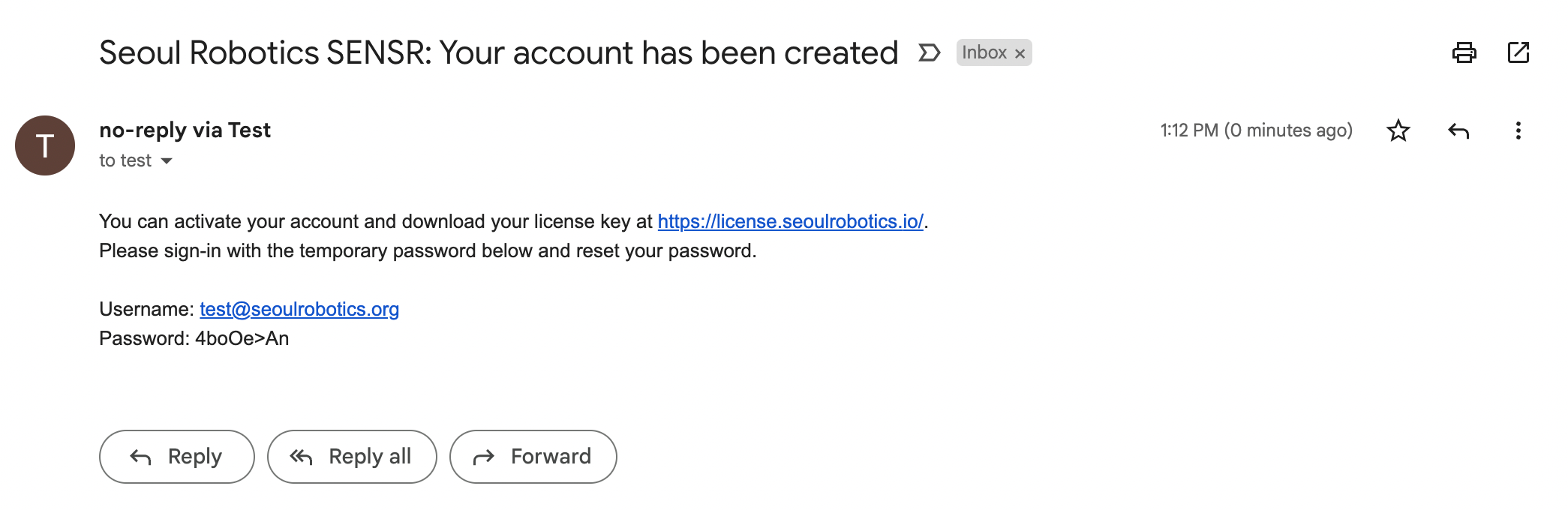
- Go to Seoul Robotics License Portal and login with your termporary credentials
- At your first login, you need to change your password. The new password must be at least 8 characters long with at least 1 number, 1 special character, 1 uppercase letter and 1 lowercase letter.
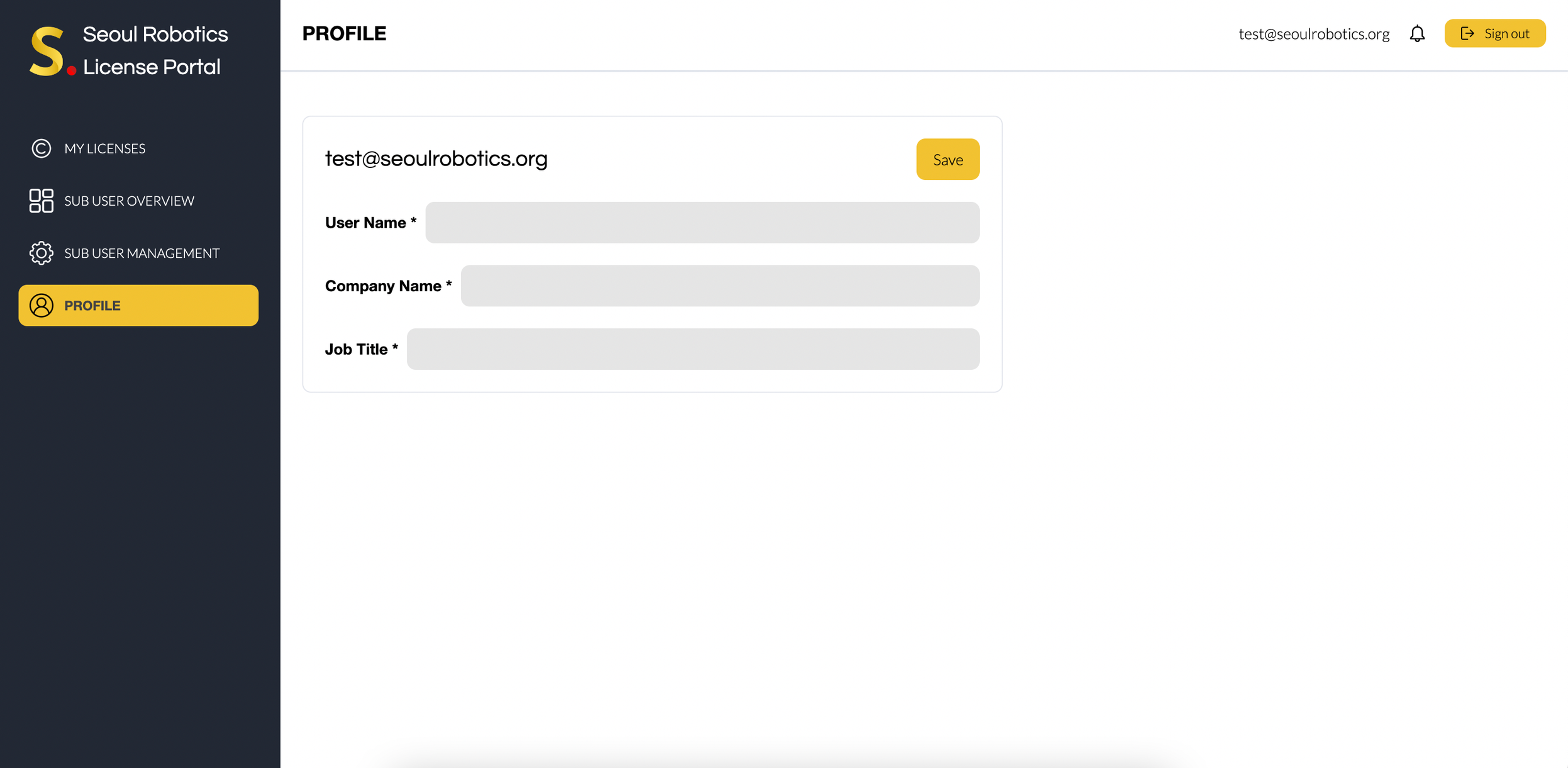
- Update your profile information with Name, Company name and Job title. Seoul Robotics will use this information to provide more accurate support.
Activate your license
info
If you have Discovery kit (LPU with SENSR-I pre-installed), you may skip this procedure.
caution
After the License Server installation is complete, you can proceed with the process below. If not, go back to the previous step.
- Retrieve the file
license_id.jsonfile in the~/seoulrobotics/licenses/folder of your license server machine - Go to Seoul Robotics License Portal
- Log in to your account
- Go to Dashboard and check your licenses available and click on
Create License.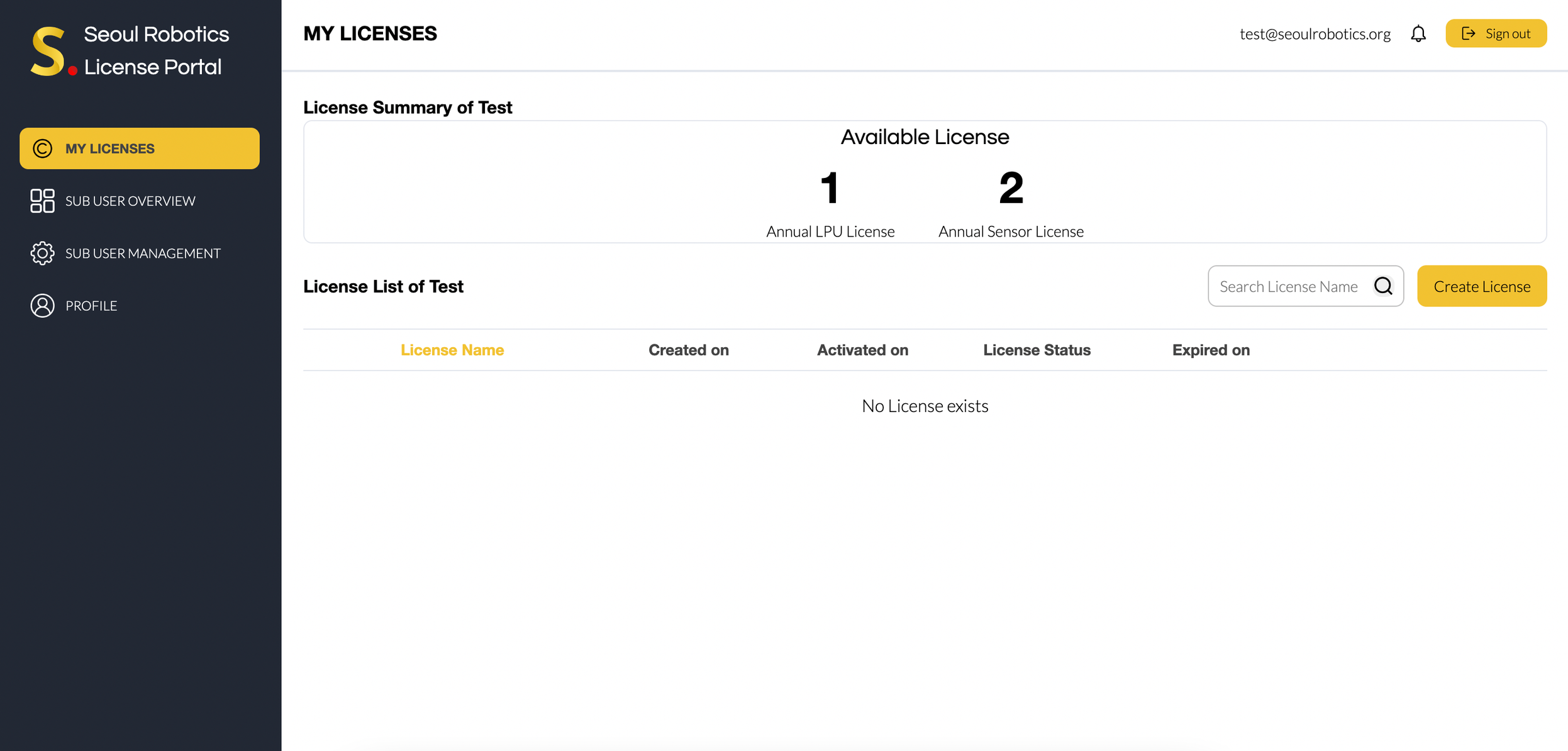
- Enter the requested information to create the license and confirm by clicking on
Create License
- License name : Name of your license. (not required to be unique),
- License period : Duration of license in years, the number entered here will be automatically deducted from your Annual LPU License pool,
- Activated from : Nor mandatory, you can decide on the activation date if you would like to,
- Supported sensors : Select the type of sensor you would like to connect to SENSR,
- Max. number of sensors : Number of sensors connected to SENSR simultaneously,
- Allow GPU preset : Tick if you plan to use GPU presets

- Click on
Activatethe activate of the license you want to activate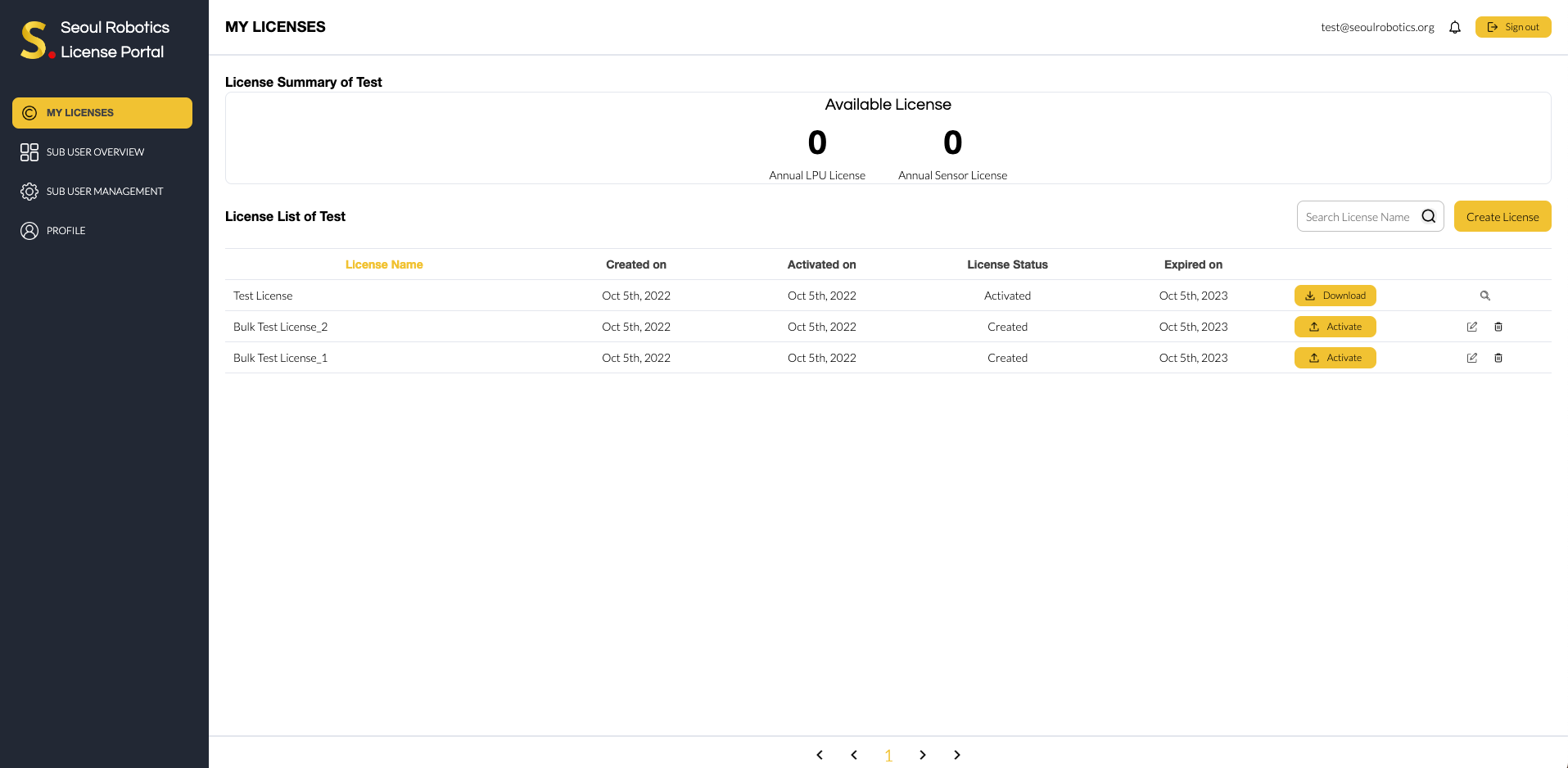
- In the new window click on
Activateand upload thelicense_id.jsonfile that was generated during license server installation.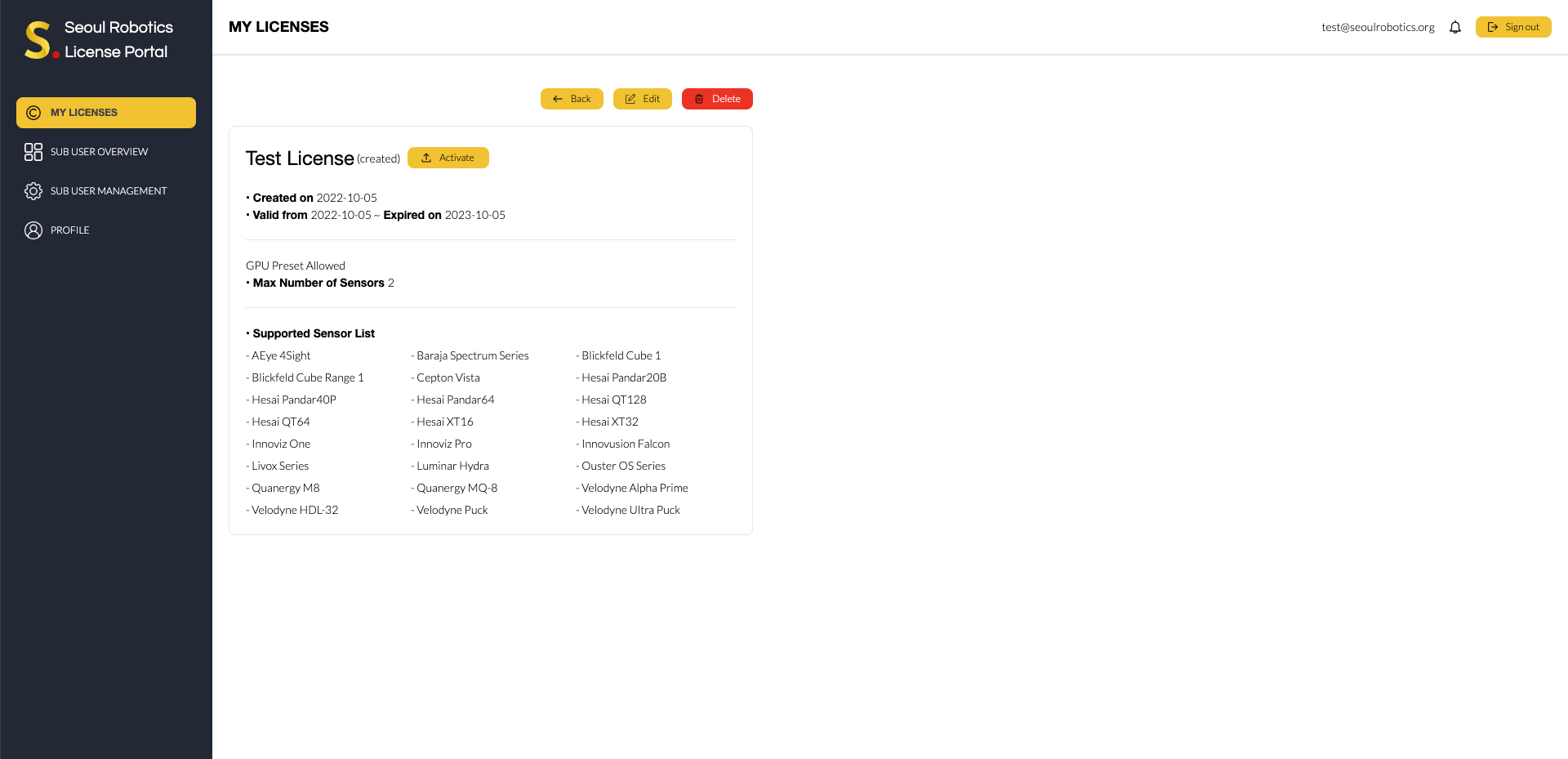
- After successfuly uploading your
license_id.jsonfile, theActivatebutton will turn into aDownloadbutton.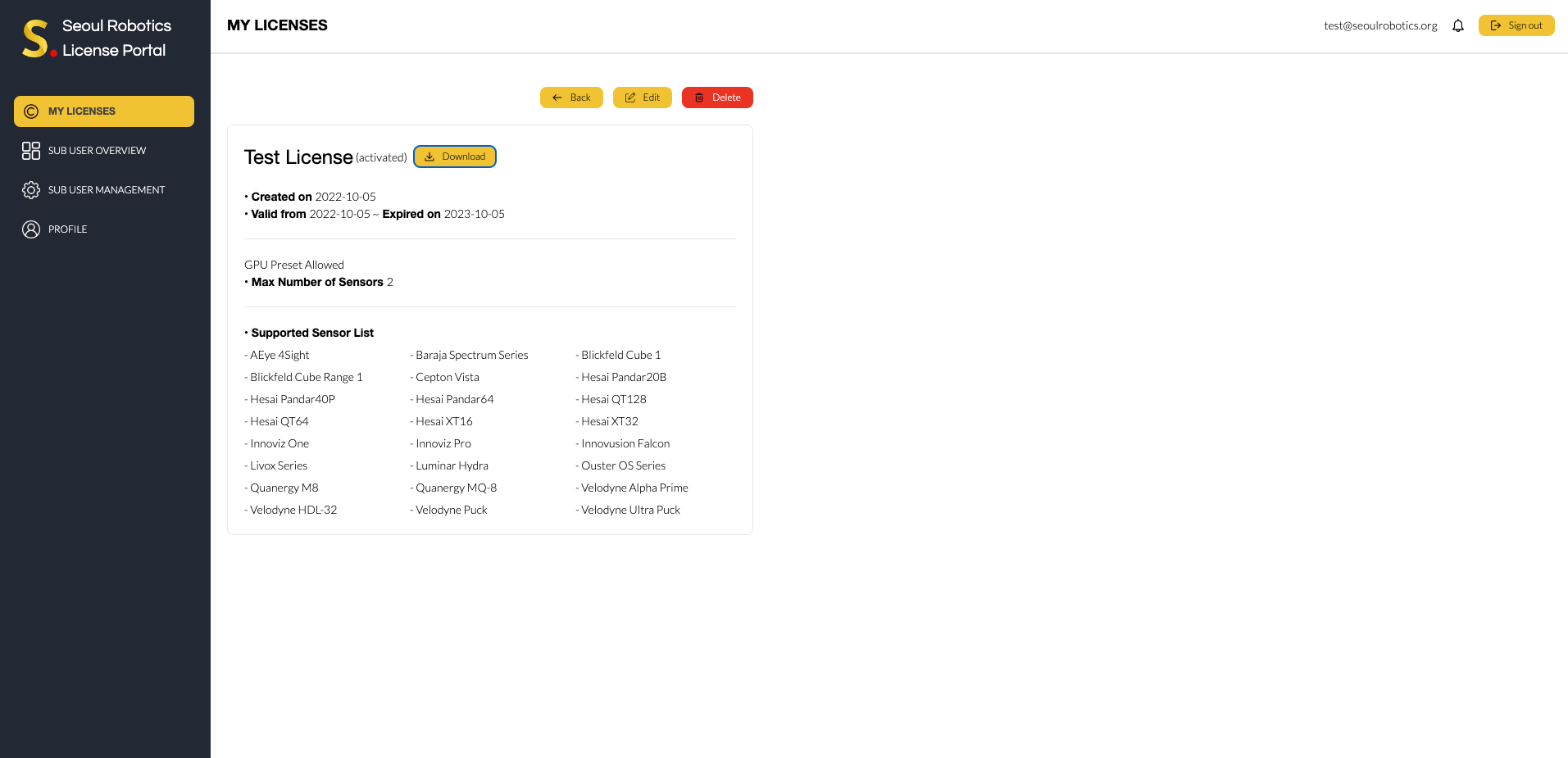
Now, your license is tied to your hardware where License Server is installed. It is not possible to transfer a license file from one machine to another. This is also the case for some Virtual Machine environments.
If you need to transfer SENSR to a different machine, please contact us at support@seoulrobotics.org or contact your account manager directly.
caution
Side Note 1. Please keep only one license file in ~/seoulrobotics/licenses/. Otherwise, License Server may read a random license file among files and use that information to perform authentication, which is not your original intention.
Side Note 2. Please do not remove .lic extension
Connect License Server and SENSR-I Instance
In fact, this process should be carried out after launching SENSR-I
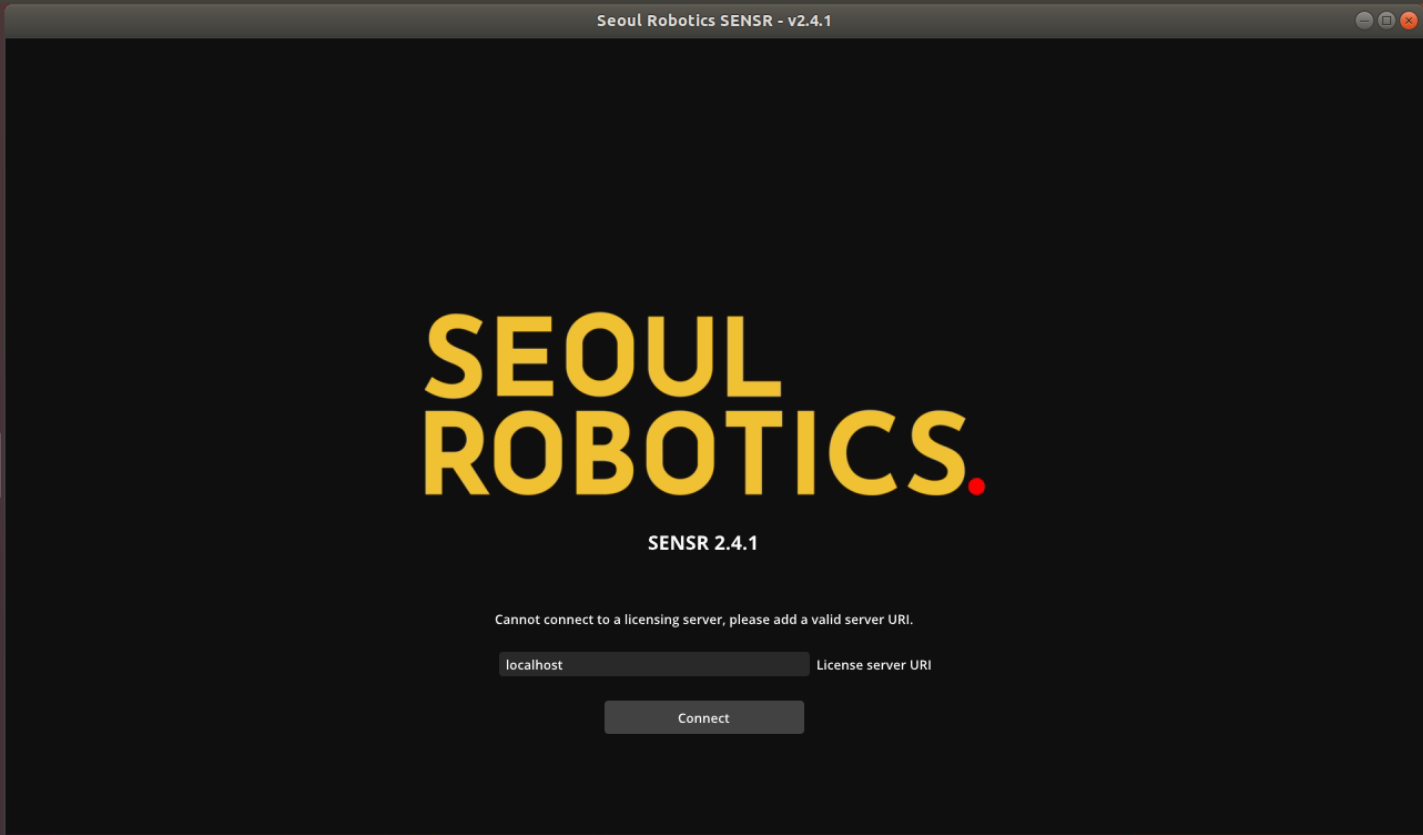
When SENSR-I is executed for the first time or the connection with the License Server is disconnected, you must enter the IP address of the License Server for connection. License Server port is fixed at 9001, and default IP is localhost.
If SENSR-I was previously closed while the connection with the License Server was normal, SENSR will automatically attempt to connect to the previously connected license server. So, you don't need to connect License Server and SENSR-I instance.
For Non-GUI mode, you can designate License Server's IP address with adding argument as -l LICENSE_SERVER_ADDRESS to the launching command.
If you are using Dockerized SENSR-I, you need to connect License Server and SENSR-I instance every time you execute it. And keep in mind that localhost is not available in this case. You should put 172.17.0.1 to the License Server URI if it is installed in identical machine that Dockerized SENSR-I is executed.