Web FE - Remote Control
Web Frontend is a web viewer that allows the user to remotely interact with SENSR-I. With Web Frontend, users can remotely check the status of SENSR-I and change some parameters if needed. Please note that not all the features of SENSR-I are available in Web Frontend
The current Web Frontend is stably supported only by Chrome browser.
The following features are not supported in Web FE.
- Play/Pause datastream
- Import Algo node and remote algo node installation
- Visualization of Point Cloud's intensity value
- Vertex control (moving and rotating) in Zone setup mode
- Background Map (Loading and Calibrating)
- Advanced Features:
- Time Synchronization
- Intensity filtering
- Retro-reflection tracking
Installation
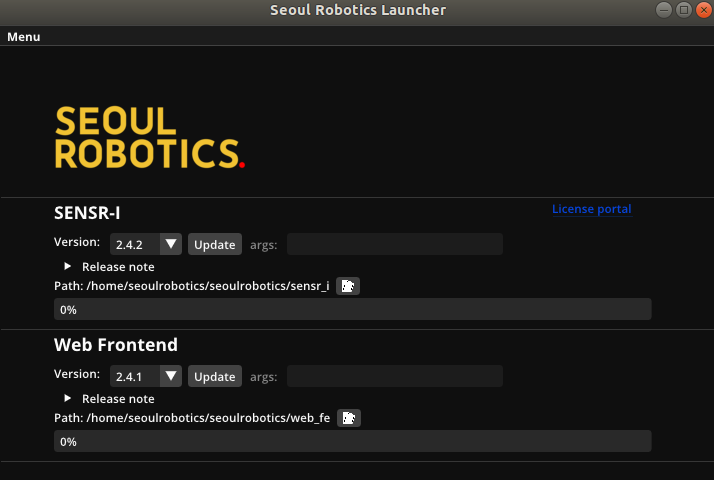
Open SR Launcher
Under the Web Frontend category, select the version to be installed and click
update(Option) A custom install path can be specified
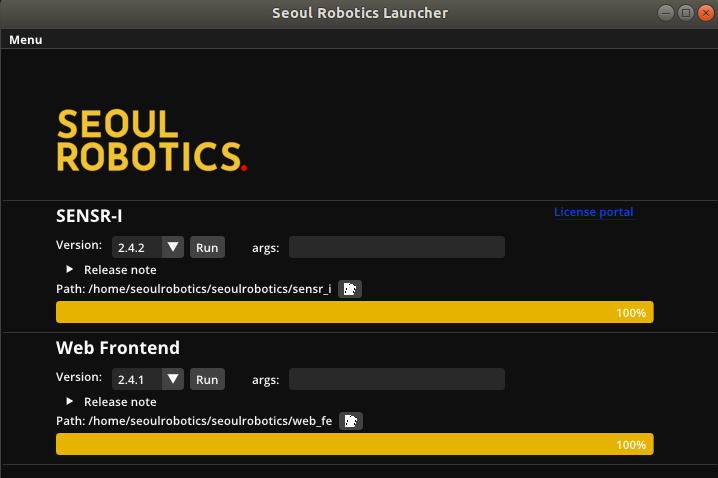
Once the Web Frontend is successfully installed, the following window should appear.
Execution
Launch with SENSR's launcher
Open sr-launcher
In the args box, The network settings of the machine running SENSR shall be specified as follows:
- IP address of the machine running SENSR (usually your computer's IP)
- Publishing port of web Frontend
- Default: 5000
For example, if the computer IP is 10.10.1.236 and the new port is 5500:

Please note that the IP and port must be separated by a pause not a colon.
By skipping this step, Web FE will use the latest IP and port used. (If they have not been changed, then the default settings will be applied.)
Click run, ensure that the IP address in front of "On Your Network" matches the args.
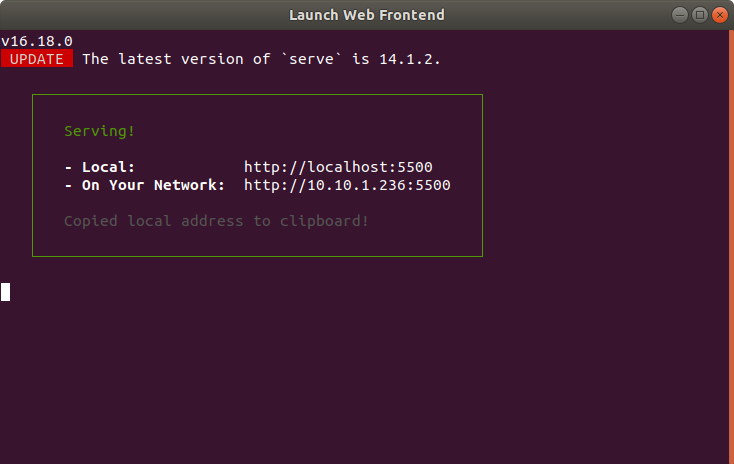
Open Chrome browser on another machine and type ‘http://[Web Frontend server ip address]:[publish port]’
- For the example above that would be: http://10.10.1.236:5500
Manual Launch from Web FE folder
- Launch embedded SENSR-I
- Open Terminal and go to the Web Frontend installed path
- Run
./start.shwith proper arguments. Arguments orderIPport. For example,./start.sh 10.10.1.236 5000. If the arguments are missing, then the previous configuration will be applied.- IP address where embedded SENSR is running (usually your computer's IP)
- Publishing port of SENSR-I (Web) server
- Default: 5000
- Open Chrome browser and type ‘http://[Web Frontend server ip address]:[publish port]’
- For example, http://10.10.1.236:5000