Web Frontend
Overview
Web Frontend is a web viewer that allows the user to remotely interact with SENSR. With Web Frontend, users can remotely check the status of SENSR-I and change some parameters if needed. Please note that not all the features of SENSR are available in Web Frontend
The functions offered by the Web Front-end are limited compared to SENSR's native interface, the table below summarises the main differences:
| Mode | Feature | Native SENSR | Web FE |
|---|---|---|---|
| General | Activate/deactivate Z Clip | Y | N |
| Lock SENSR screen | Y | N | |
| Project Setup | Import Algo Node | Y | N |
| Receive latency information | Y | N | |
| Landmark Calibration | Y | N | |
| Ground Level Profiling | Y | N | |
| Auto-Fine Tuning | Y | N | |
| Remote Installation | Y | N | |
| Play/Pause Data Stream | Y | N | |
| Change time synchronization parameters | Y | N | |
| License Expiration Alert | Y | N | |
| Load and calibrate background map | Y | N | |
| Export parameter change report | Y | N | |
| Runtime | Record rosbag | Y | N |
| Full Screen | N | Y | |
| Advanced features settings (Except Retro-reflective tracking) | Y | N | |
| Zone Setup | Filter zones list by type | Y | Y |
Installation
The Web Frontend is automatically deployed as a docker image while installing SENSR.
Its presence on the machine can be checked using the command docker images. If the web frontend is deployed, an image such as the following should be shown:
sensr_frontend 3.3.0-beta.1 8c80ed91678a 13 days ago 134MB
Running the web Frontend
Pre-requisite
info
To properly run the Web FE on a machine with a graphics drivers(GPU), you should enable graphics acceleration options in the Chrome browser
How to enable graphics acceleration option
- Type "chrome://settings/system" in Chrome browser.
- Enable the "Use graphics acceleration when available" option.
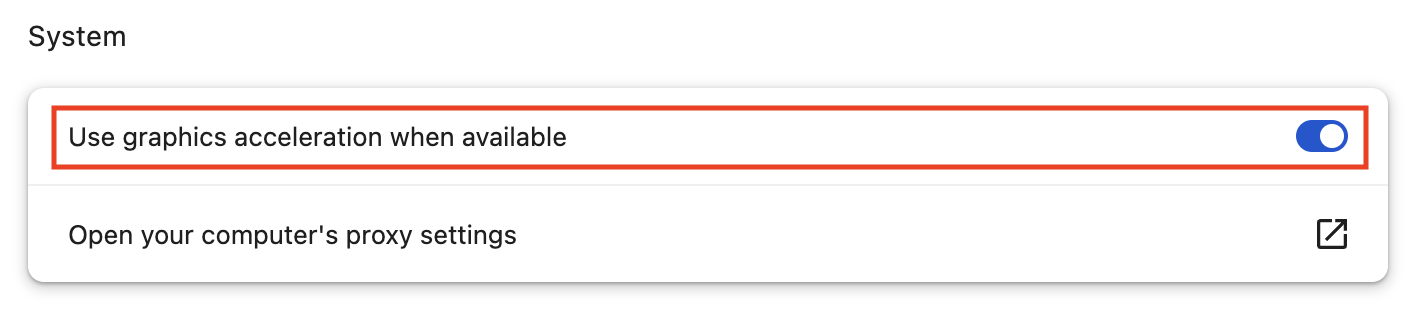
- Relaunch the Chrome browser
Default
To run the web Frontend, either:
- In the SR Launcher CLI, run the following command:
sr-launcher-cli run web-fe-server - In the SR Launcher GUI, int he bottom right corner, click on the button Run Web FE server
The web frontend will be published on the ip address specified for the cluster and publish on port 5000.
Custom ip and ports
In some instances, the user may want to publish the web frontend on a specific ip-port combination. In that case the following command should be used with the SR Launcher CLI version: sr-launcher-cli run web-fe-server -p <Port_to_use> -s <IP_to_use>
If a given flag is left empty, the value used will be the default one: port : 5000, ip: cluster ip.
Using the web Frontend
To use the webfrontend, in Google Chrome:
- Enter
http://<ip_to_use>:<port>, - This will open the web Frontend.
Stop the web Frontend
To stop publishing the web Frontend, either:
- In SR Launcher CLI, run the command
sr-launcher-cli stop web-fe-driver - In SR Launcher GUI, click on the Stop web-fe server button in the bottom right
Connect to use SSL
Overview
SSL plays an important role in securely transmitting and protecting sensitive data used for communication between clients and servers. SENSR provides SSL security features for secure communication between clients and servers. This ensures the safety and security of data transmitted between SENSR and its web frontend.
Setup
Enable SSL mode
1) Move
/opt/seoulrobotics/app_configfoldercd /opt/seoulrobotics/app_config2) Change "enable_ssl" value to
trueinapp_settings.toml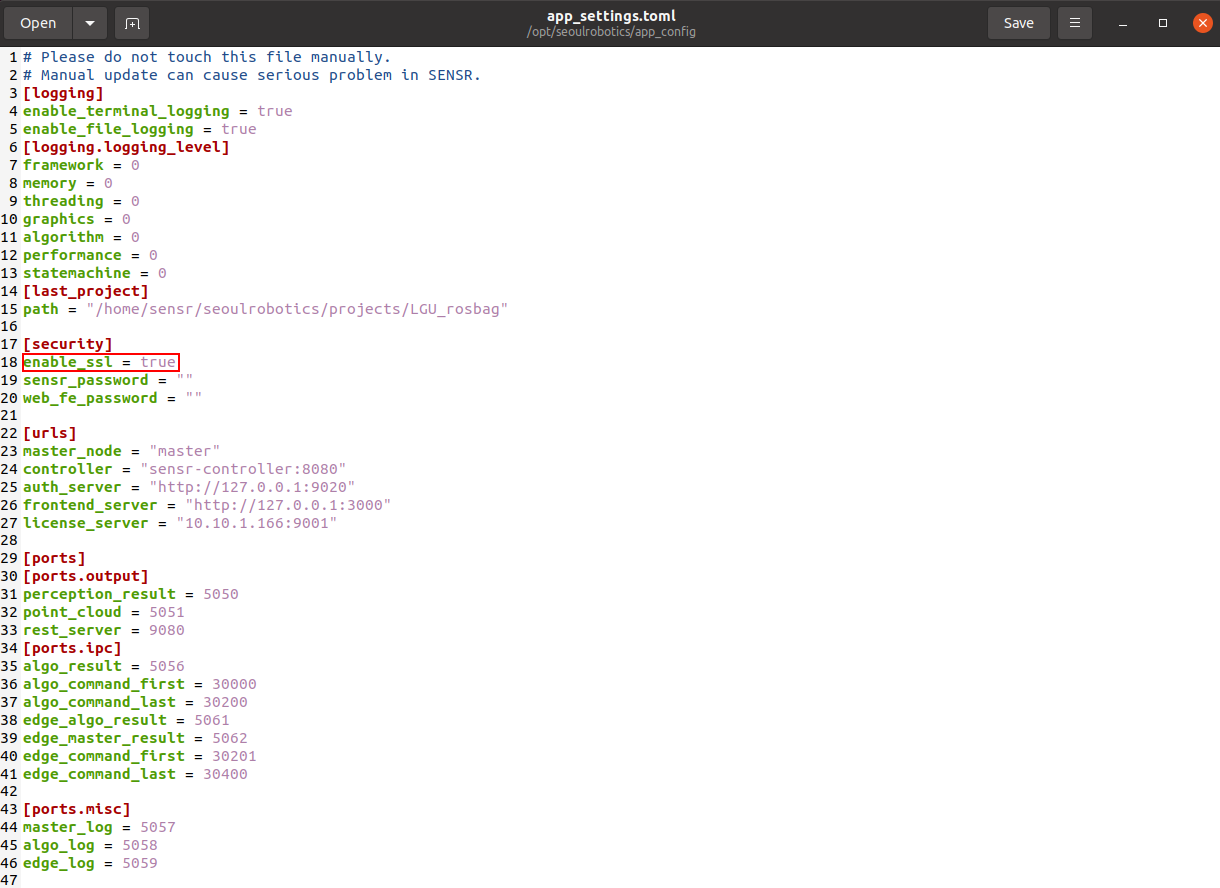
Create Certificates
1) Move
/opt/seoulrobotics/utilsfoldercd /opt/seoulrobotics/app_config2) Create certificate files using
generate_certificate.shscript./generate_certificate.sh {IP address}Enter the IP address to open the web frontend.
Run the web Frontend
Manually open the web frontend through the terminal.
docker container run --rm -v /opt/seoulrobotics/keys/sensr-ca.key:/workspace/certs/ca.key -v /opt/seoulrobotics/keys/sensr-ca.crt:/workspace/certs/ca.crt -e ENABLE_SSL=1 -p 5000:8080 sensr_frontend:{SESNR verison}Access the web frontend using a browser. 1) Open browser and enter
https://IP address:5000example
https://192.168.1.30:50002) The browser will warn you if you want to connect. Click Advanced to proceed with access.
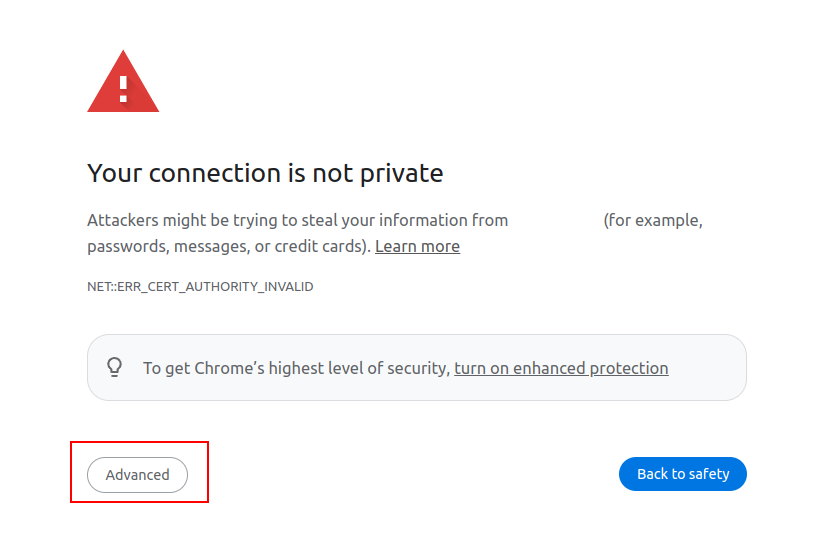
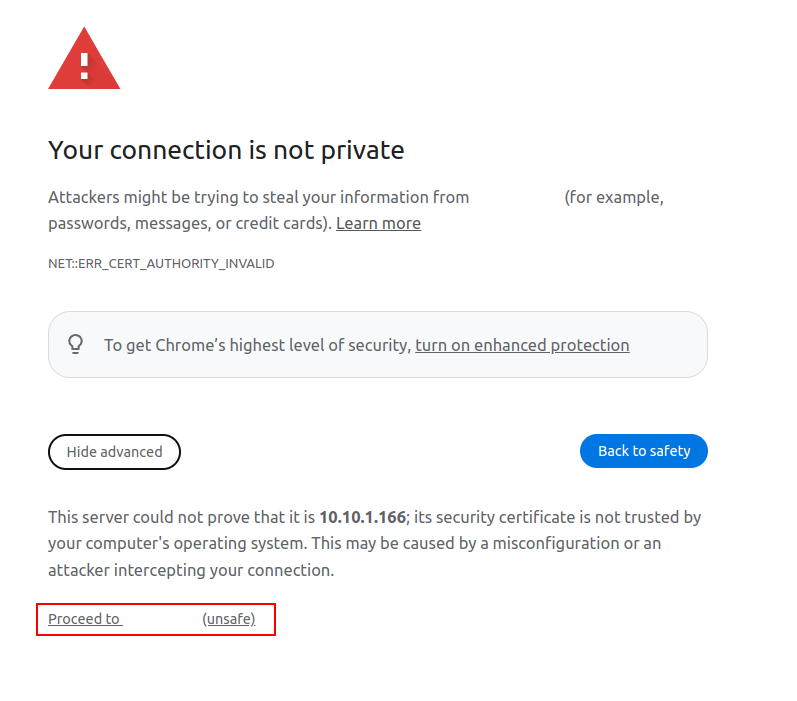
3) The web frontend screen is output normally.
Stop the Web Frontend
Find the name of the Docker container for the web frontend.
docker ps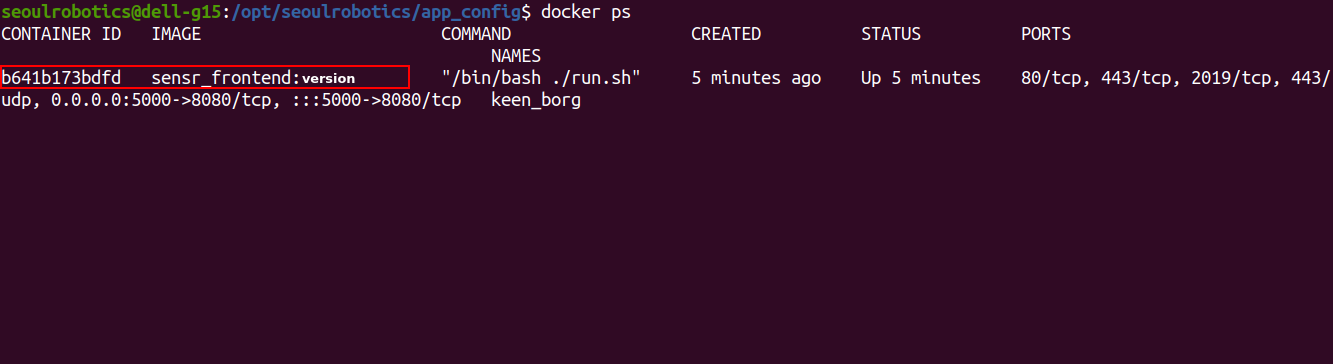
Stop the web frontend docker container.
docker stop {the web frontend docker name}