QnAs
- Q. I have a discovery kit, but I don’t know what to do.
- Q. How can I get my License?
- Q. Error message: “License doesn’t exist. Please contact our support at support@seoulrobotics.org to issue your license.”
- Q. Where should I install my sensors?
- Q. I'm having a hard time with connecting lidars in SENSR
- Q. Velodyne FOV keeps changing and rotating
- Q. I would like to update SENSR to the new version
- Q. I would like to use other kinds of lidars.
- Q. How to import presets?
- Frequently used parameters
- Q. I would like to track the objects which have fewer points.
- Q. I would like to prevent the objects from disappearing.
- Q. My detecting area has so much more noise than I expected.
- Q. It seems like objects are absorbed into the background more than I expected.
- Q. The objects split a lot
- Q. I would like to detect the objects very far located.
- Q. How can I record rosbag file?
- Q. Which outputs does SENSR have?
- Q. How to interpret x and y value of velocity elements(SDK)?
- Q. How to get my IP address of Web Frontend?
- Q. I have pcap file. Can I use it in SENSR?
- Q. How can I convert pcap file into rosbag file?
- Q. Which lidars do you support?
Q. I have a discovery kit, but I don’t know what to do.
A. Are you new to Discovery kit? Please check Quick Start Guide first.
Q. How can I get my License?
A. If you received Discovery Kit from distributors, download .lic file from [License portal].
Q. Error message: “License doesn’t exist. Please contact our support at support@seoulrobotics.org to issue your license.”

A. Quick check if .lic file is located in SENSR folder with license_key.json and the SENSR.sh file.
If it doesn’t work, please contact support@seoulrobotics.org
Q. Where should I install my sensors?
A. We suggest each installation condition by applications with frequently used lidar.
Those suggestions are based on two main rules:
- Install the LiDAR to make the densest LiDAR channels overlap over the area of interest. (In most cases, set up LiDAR to face the center of the area of interest)
- Be aware that there are blind spots due to LiDAR’s inherent FOV. If you are available to set up multiple LiDARs, cover the blind area with another sensor.
note
Traffic Monitoring Solution - 4x Hesai XT-32 or 2x VLP-32(with a strong preference for 4x Hesai XT-32)
- 4 meters high at the nearest pole from the intersection center
- The shortest brackets
- 15~20 degrees tilted down (to make the densest points heading to the intersection center)
- 45 degrees rotation to facing intersection center
- Any customization would be fine but keep in mind the two main rules. ex) If you would like to install a sensor higher than the standard setup, please tilt more.
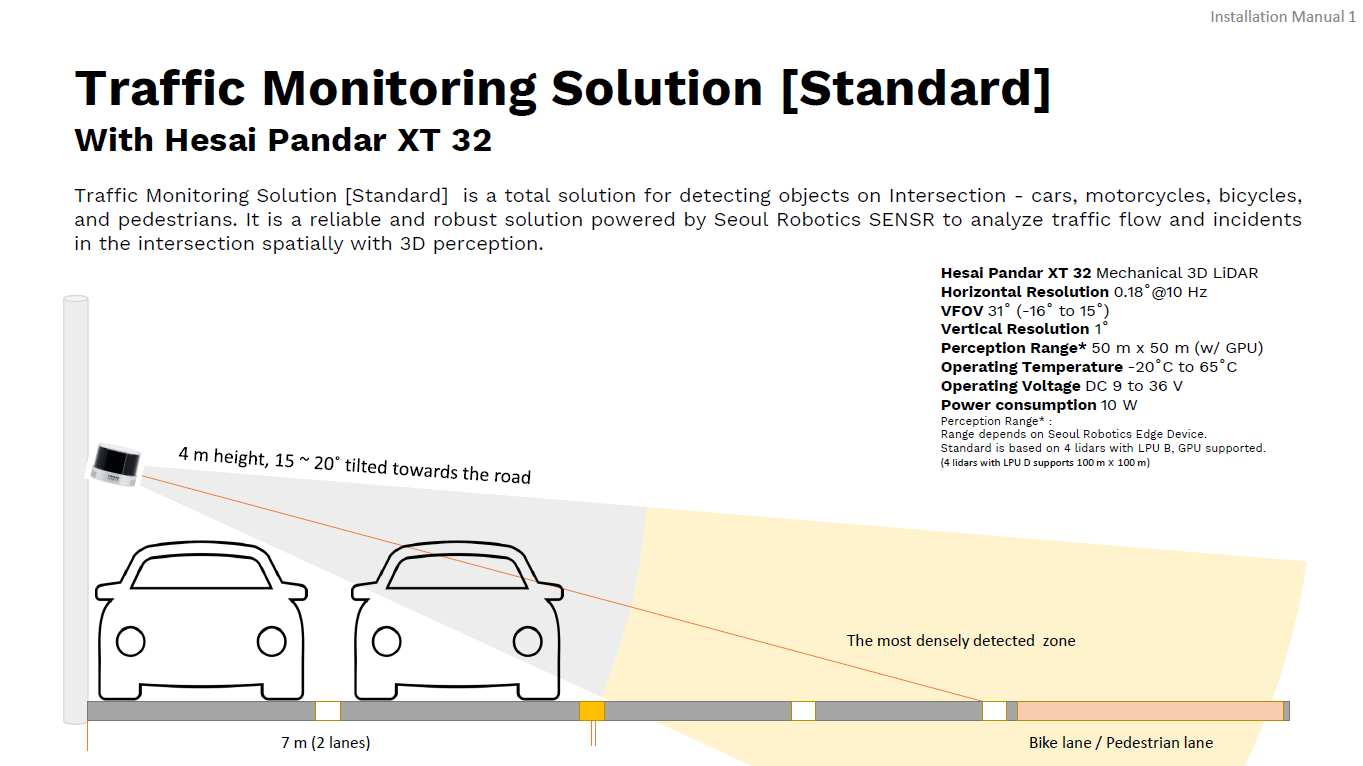

If there’s no specific application for you, please contact support@seoulrobotics.org with your environment information.
- Which lidars do you use
- Your point of interest
- Available install position options
- Any restrictions
Q. I'm having a hard time with connecting lidars in SENSR
A. Please check the following to connect lidars correctly:
✅Cable connection check (Go to Quick start guide)
✅Check the network settings It must same netmask with lidar ip address
For example. lidar ip : 192.168.6.156, lidar netmask : 255.255.255.0
Computer ip : 192.168.6.XX, computer netmask : 255.255.255.0

✅Firewall check
sudo ufw status

If status is active, you should turn off ufw.
sudo ufw disable
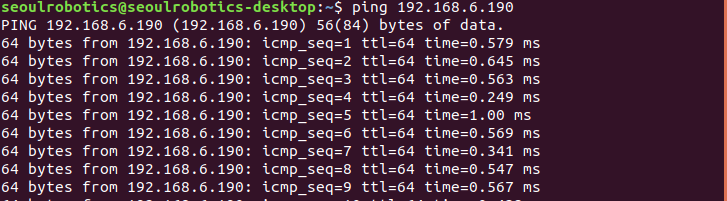
✅Ping test If the lidar ip is 192.168.6.190, you can check like picture below. If it connects well, you can see like below(64 bytes from XXXX : ~)
note
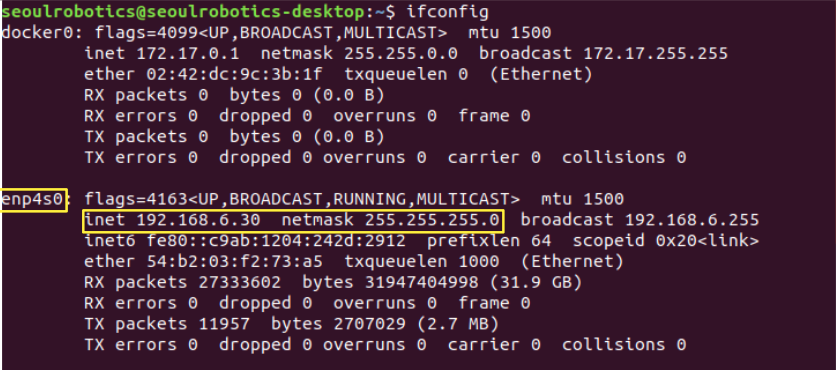
Ping failure: check Wireshark (sudo apt-get install wireshark) When you type the ifconfig command in your terminal, you can see your ethernet name. Ex ) Below picture shows, ip : 192.168.6.30, ethernet name : enp4s0
After you check your device information, you should type sudo wireshark. If you type the command, you can see the picture like below.

Please click your ethernet name as you checked above.
- If it connects well, you can see packet messages with blue color.
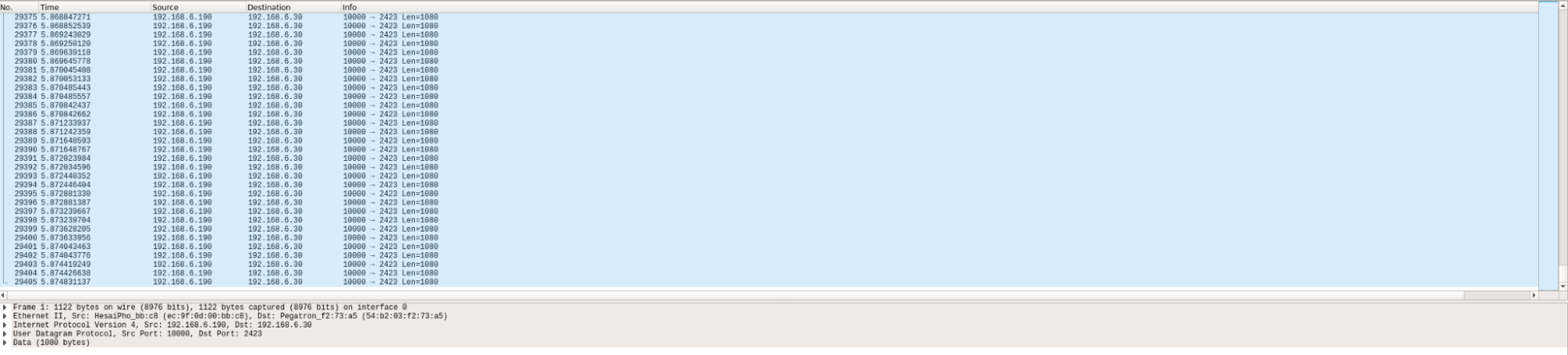
- If something has a problem, you can see the lidar packet below. Below pictures uses Hesai lidar

Ping success: Please input lidar’s IP and port number correctly
✅Routing table check
If it does not works with above method, you can add your lidar port number with below command
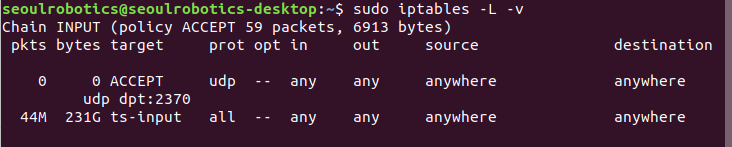
sudo iptables -I INPUT -p udp --dport (lidar port number) -j ACCEPT
After you add the port number, you can see like below.
EX ) my ip address number 2370
Q. Velodyne FOV keeps changing and rotating
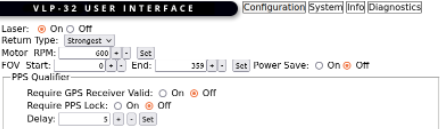
A. If you have such problem with Velodyne, following instructions would be helpful.
Type Lidar IP address on your internet browser. (you can check the IP address with Wireshark)
Check if Return Type is Strongest
Q. I would like to update SENSR to the new version
A. Click the version you want to upgrade on SR-LAUNCHER, and click the upgrade button.
Q. I would like to use other kinds of lidars.
A. You are supposed to get upgrade your license file. Please contact your business partner.
If you consistently cannot see additional lidar configuration in SENSR:
Please download the upgraded version of the license file through your business partner or License Portal. Make sure you have a recent version of the .lic file on your system.
Q. How to import presets?
A.
- Preset file format is .bin
- Go to the menu SENSR > preference > manage algorithm preset > import preset
- Select Preset Name.bin file.
- Go to Algo node configuration window and select Preset Name on the preset input box
Frequently used parameters
caution
- Parameter adjusting can cause better or worse performance. Those below are common suggestions, so review your data by changing them one by one.
- Also, we recommend saving the original preset to go back anytime.
- If you have any questions or if you need more specific suggestions on your site, please feel free to contact support@seoulrobotics.org with minimum 3 mins long rosbag file and the project file which can show the problem you would like to solve.
SENSR > Preference > Algorithm (common)
Q. I would like to track the objects which have fewer points.
A. Decrease Tracking > Min. Points for Tracking
Q. I would like to prevent the objects from disappearing.
A. Increase Tracking> Drifting Period, or increase Time to Become Background
Q. My detecting area has so much more noise than I expected.
A. Decrease Time to Become Background
Q. It seems like objects are absorbed into the background more than I expected.
A. Increase Time to Become Background
Q. The objects split a lot
A. Adjust Cluster> x or y resolution. Decreasing would help you split objects, increasing would help you merge objects.
Q. I would like to detect the objects very far located.
A. Decrease Cluster > Cluster Point Threshold. However, it can decrease the accuracy, so the balance is the most important.
Q. How can I record rosbag file?
A.
- Go to the menu SENSR > Replay > Record Record Points The Record file will include the Ground, background and objects points. But if you do not, it has just information related to objects. It will produce “Filename.tar.gz” files Record Rosbag SENSR will produce “algo_XXX.bags” file in the project file with the new folder named “Record_Filename_rosbags”
The .tar.gz file replays the situation as it is when the runtime is started. However, the .tar.gz file itself does not contain raw data, and raw data must be used in a rosbag.
- Or you can record Rosbag in terminal
Q. Which outputs does SENSR have?
A. Live data stream(TCP and web socket) You can check SDK sample code from here
We also provide JavaScript and Python interfaces inside the SDK to easily work with SENSR output in those languages. For more information on how to use JavaScript and Python, please refer to the relevant readme in the SDK repository.
Q. How to interpret x and y value of velocity elements(SDK)?
A. For example, if you have the x and y value like below, x: -10.330358505249023 y: -0.5107154250144958
The velocity(≈speed) is sqrt(xx + yy) And the angle(≈direction) is atan2(y, x) So -10 m/s and -0.5m/s are just the x and y components of the velocity.
Q. How to get my IP address of Web Frontend?
A. You can check your ip address here:http://www.whatismyip.com/
- IP address where embedded SENSR is running Default : 127.0.0.1
- Publishing port of SENSR-I (Web) server Default: 5000
- Open Chrome browser and type ‘http://[SENSR-I(Web) server ip address]:[publish port]’ E.g ) http://localhost:5000
Q. I have pcap file. Can I use it in SENSR?
A. We only support Rosbag file in SENSR. If you would like to use Pcap file, you need to convert the file to rosbag. Please refer to how to convert pcap into rosbag
Q. How can I convert pcap file into rosbag file?
A. Velodyne lidar has a library to convert pcap into rosbag. Check pcap converting page at here
Otherwise: you have write your own code to convert.
Q. Which lidars do you support?
A. We are sensor-agnostic. Please check the lidar support list at here