Zone Setup
SENSR has built-in zone management. Zones can be used to trigger entry/exit, calculate occupancy or areas and to eliminate noise.
You can access the zone setup screen using the Mode > Zone Setup menu item. When you create a new zone
Zones
There are two types of zones:
- Event Zones
An Event Zone is a special area that reacts to objects entering and exiting. The data output stream (see Output) will generate a message whenever an object enters or exits an event zone. Additional triggers are available (see Event Zones Additional Trigger Settings
- Exclusion Zones
Exclusion zones are used to exclude an area from being processed. Any object that enters an exclusion zone is no longer tracked and will not be part of the output stream. This can be done for a variety of reasons.
Privacy
It is possible that in the total coverage area not all areas are allowed to be tracked, but the sensors have line of sight.
Noise
It is possible for certain seemingly static objects to create movement. Vegetation in particular can move in the wind and create false positives. If a coverage area has a known trouble spot, a manually created exclusion zone around this object can eliminate false positives in this area.
Reflections
info
To be developed as Reflection zones in SENSR 2.4
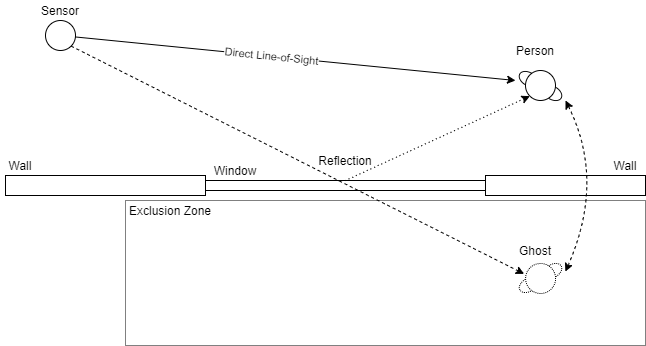
The ‘Li’ in LiDAR stands for ‘Light’. Light reflects off of shiny surfaces such as mirrors and glass. This has the potential to create Ghost Images.
For example: A sensor and a person are in the same room with a large window. The sensor has a direct line-of-sight to the person, creating an object. The sensor also has an indirect line-of-sight through a reflection off the window. The sensor is not able to differentiate a reflection from a direct line-of-sight and will provide the SENSR system with ghost points on the other side of the window.
The solution to this is to create an exclusion zone on the other side of the window, so any objects will be ignored.
Performance
Another important reason to create exclusion zones is to reduce the amount of processing that is required. If your sensors have line-of-sight to an area, but you are not interested in tracking in that location, an exclusion zone will skip any processing that would otherwise take place inside the zone.
Zone List
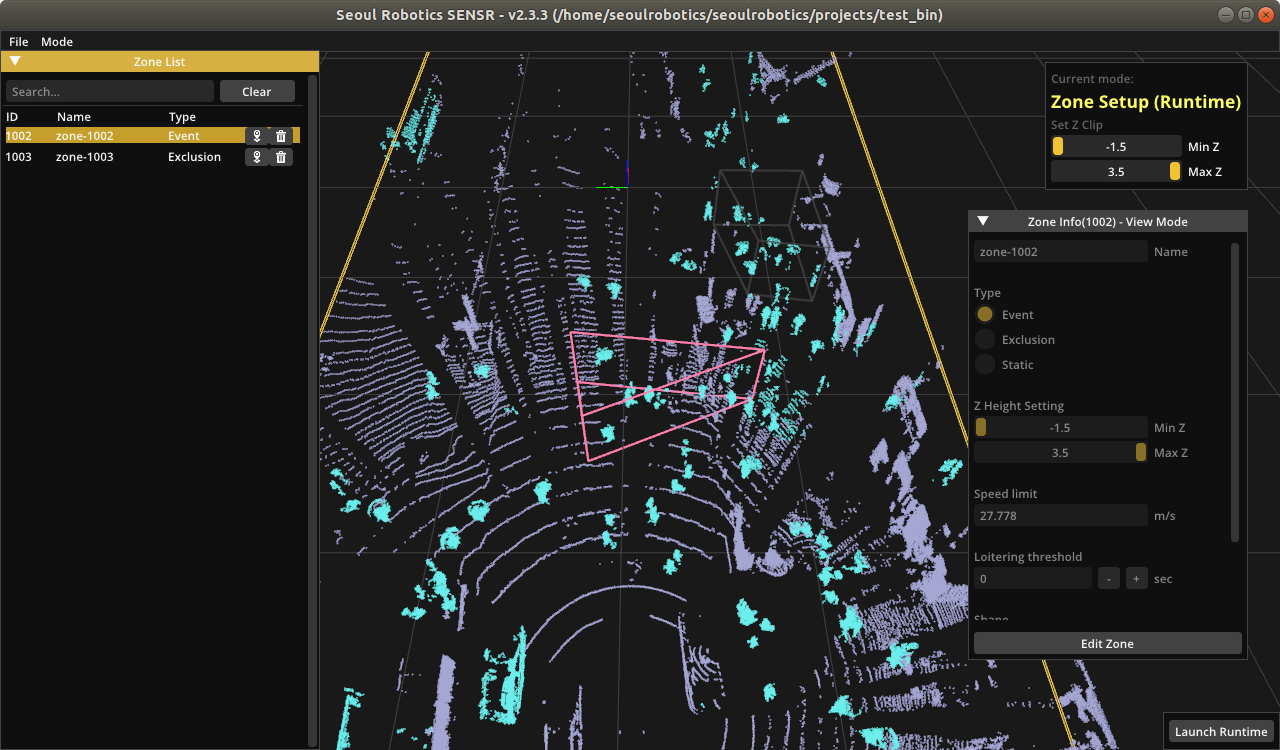
When you enter Zone Setup, you will see a window with all existing zones listed.
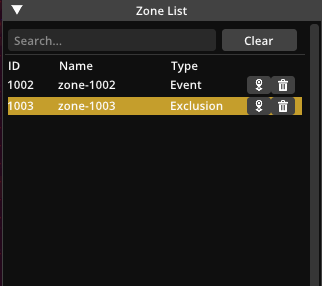
In the window, you can see a list of zones on the ‘Zone List’ widget. If you hover your mouse over a zone in Zone List, that zone is highlighted in the 3D view with a brighter color.
Add/Edit Zone
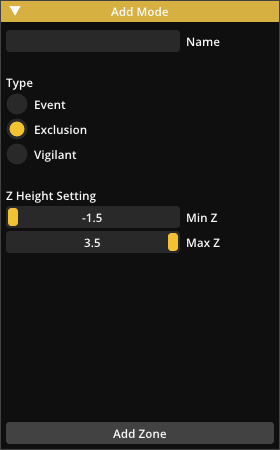
There is one more widget in Zone Setup called ‘Zone Setup’ widget. This widget provides a functionality to add or modify a specific zone. To add a zone, you can click any empty place and you will see the ‘Add Zone’ button at the bottom of the widget. When you click the button, SENSR creates a zone according to your setup in the widget. (Name, Type, Height)
Name
The name is a label that you can create for your zone. This name is part of the output stream (see Output). A default name is created using the format ‘Zone-{zone_id}’. You can change it to your liking and it does not have to be a unique name.
Type
You can select the type of zone. (Event or Exclusion)
MIN Z
This is the height in meters of the bottom of the zone as measured from the ground level. This allows a zone to be created above ground level.
If you create a zone with a minimum height of non-zero, make sure to check the ‘Allow Floating Object’ option in the settings (see settings). If the zone has a MIN Z of greater than zero, the bottom of the object must be above the MIN Z value for the object to be considered in the zone.
MAX Z
This is the height in meters of the top of the zone as measured from ground level.
Drawing a Zone
After ‘Add Zone’ is clicked, the 3D viewport changes to a 2D top-down view of the site.
To start creating the zone, click on the location of the corners of a zone in the 3D viewport. A left-click will add a new point and a right-click will remove the most recent point.
To cancel the creation of a zone during the point selection process, click the Cancel button.
There are two points that you have to keep in mind while drawing the zone.
- A zone should have at least 3 points.
- A zone can not have any self-intersection.
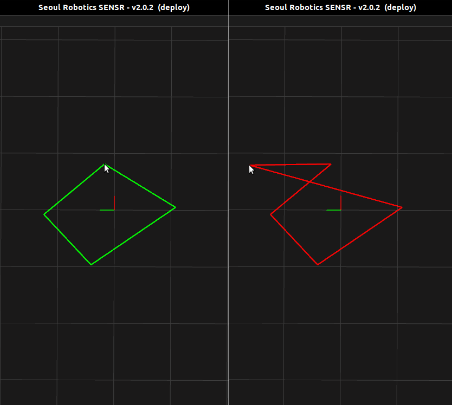
The zone can assume three colors during the zone creation process.
Red: The zone does not satisfy the above conditions and cannot yet be completed. Add more points or right-click to remove a self-intersection.
Gray: The zone can be completed or more points can be added.
Green: The current location of the cursor will complete the zone on a left-click.
Event Zones Additional Trigger Settings
SENSR Event Zones come with a number of more advanced triggers that can be configured.
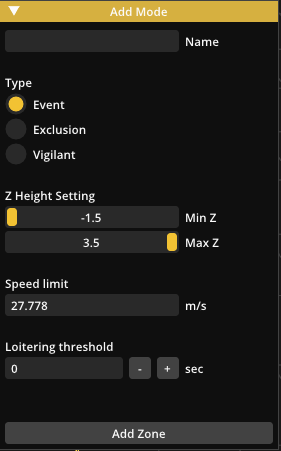
Speed Limit
This number, in meters per second, will trigger an ‘exceed speed’ event message in the output stream when an object that is inside the zone boundaries exceeds the speed threshold.
Loitering Threshold
Any object that is inside the zone boundaries will be tracked how long it has been within the boundaries. When the time exceeds the threshold a ‘loitering’ message will be generated. If the object exits and re-enters the zone, the elapsed time will be reset on exit.
note
For an object to be considered in a zone, the following criteria must be met
- Both X and Y at the center of the bounding box at ground level must be inside the zone
- The entire height Z of an object must be inside the zone (both top and bottom of the bounding box)