Settings
Common setting
Common setting can be found in Preference > Algorithm (common)
| Location | Field | Name | Description | Unit | Default | Range |
|---|---|---|---|---|---|---|
| Common | Output | Publish Point-Cloud | The level of publishing point cloud to output port. This setting will greatly increase the bandwidth between the algo nodes and the master node! 0: Nothing published 1: Only object point published 2: Both object & background points published | int | 2 | |
| Point-Cloud Bandwidth Reduction | This decreases the communication burden by reducing pointcloud data size. This option affects the update method which sequentially updates each lidar is in calibration mode and downsample background and ground points in runtime mode. | boolean | false | |||
| Downsampling Resolution | Set resolution of downsampling method of pointcloud bandwidth reduction. Value can be between 0 to 1. | Float | 0.3 | |||
| Point-Cloud Update Interval | Time between updates of background point cloud information from algo nodes to the master node. Updating frequently can be resource-intensive.. | seconds | 1.0 | |||
| Sensor Update Interval | Time between updates of sensor information from algo nodes to the master node. | seconds | 0.1 | |||
| Output Sending Type Selection | Method for sending and updating new results. 0 - Instant Sending: Publish result whenever a new one is available. 1 - Fixed-Period Sending: Publish the most recent result periodically. The published result might already have been published in a previous frame. 2 - Fixed-Period with Max-Delay: Publish the most recent result periodically. If there is no new result, the sending is postponed until a new result is received or a maximum delay time has passed. | int | 1 | |||
| Update Interval | Publish interval for output sending type 1 - Fixed-Period Sending and type 2 - Fixed-Period with Max-Delay | seconds | 0.1 | |||
| Max Delay | Maximum delay of output sending for the output sending type 2 - Fixed-Period with Max-Delay | seconds | 0.05 | |||
| Publish Point-Cloud Intensity | Enable this option to publish Point Intensity values to Master Node. This option can be disabled when intensity visualization is not being used. | True/ False | False | |||
| Trigger Zone Events with MISC Objects | Enabling this will trigger zone events with MISC objects | True/ False | False | |||
| Pipeline Cycle | Maximum Lidar Input Interval | If there is no response from one of the lidar sensors for this time duration, that lidar sensor will be considered dead. | seconds | 4 | [0,30] | |
| Restart dead lidar drivers automatically | When this is enabled, lidar sensor driver will be restarted automatically if it does not response for duration specified in “Maximum Lidar Input Interval” | True/ False | True | |||
| Frame Update Method | Method for updating new frames from received results 0- Instant: Update frames as soon as results arrive 1 - Use buffer: Update frames using buffer that stores frames after specified delay time in case of network traffic | Int | 0 | |||
| Minimum Pending Time | This option is only visible if Instant is selected in the Frame Update Method. Due to connection issues, the time interval between two point-cloud messages of one lidar can be unreasonably small. This minimum interval will ensure that one lidar point-cloud message of the pipeline has a reasonable time gap with the next one. A message which time difference with the previous message is below this minimum interval will get discarded. | seconds | 20 | [0, 100.] | ||
| Maximum Pending Time | This option is only visible if Instant is selected in the Frame Update Method. Perception pipeline will be triggered whenever data from all connected lidar sensors were received or at least new data from one lidar sensor arrived and this time threshold is reached. | seconds | 150 | [100, 1000] | ||
| Processing Delay Time | This option is only visible if the “Use buffer” option is selected in the Frame Update Method. All received frames will be stored in the buffer and visualized after this time. All received frames will be results from this time ago. | seconds | 0.1 | [0.0, 3.0] | ||
| Frame Frequency | This option is only visible if Use buffer is selected in the Frame Update Method. Frames from the buffer will be processed in this specified frequency cycle. | seconds | 0.1 | [0, +inf] | ||
| Tracking History | Tracking History > Length | The number of history positions to keep. | int | 100 | [0, +Inf.] | |
| Tracking History > History Smoothing Level | Trajectory smoothing level | int | 3 | [0, 3] | ||
| Trajectory Prediction | Trajectory Prediction> Number of Prediction Steps | Number of prediction steps | int | 10 | [0, +Inf.] | |
| Trajectory Prediction> Prediction Step Time-Horizon | Time step between two predicted points | seconds | 0.1 | [0, +Inf.] | ||
| Trajectory Prediction> Max. Acceleration Filter Threshold | Maximum acceleration for prediction | m/s2 | 15.0 | [0, +Inf.] |
Master setting
Master setting can be found in Preference > Algorithm (master)
| Location | Name | Description | Unit | Default | Range |
|---|---|---|---|---|---|
| Output-Merger > Algo-Node Result Timeouts | Algo-Node Object Result-Timeout | If a point cloud receival time of a result from an algo node and the latest receival time differ by more than this timeout, the algo node result is removed from result aggregation.For the point result, the point-cloud update frequency is added to this timeout. For the sensor statuses, the sensor update frequency is added to this timeout. | seconds | 0.2 | [0.1, +Inf.] |
| Algo-Node Point Result Timeout | seconds | 0.2 | [0.1, +Inf.] | ||
| Algo-Node Sensor Status Timeout | seconds | 0.2 | [0.1, +Inf.] | ||
| Output-Merger > Multi Algo-Node Merger | Dominant Algo-Result Criterion | Method for deciding the dominant algo-result. 0 - Largest BBox: The object with the largest bbox is regarded as the dominant algo-result. 1 - Largest Bbox and Longest Track: If there’s a significantly large bbox, the algo-result takes dominance. If not, an algo-result with longer tracking history takes dominance. | 0 | [0, 1] | |
| Scale Ratio Threshold for Age Comparison | Scale ratio threshold for 1 - Largest Bbox and Longest Track. Tracking period takes priority for the dominance when there's a size ambiguity between algo-nodes. The size ambiguity condition is defined below: abs(max_size - size) < thr * max_size | 0.1 | [0.01, 0.5] | ||
| Overlap-Region Map Resolution | Resolution of overlap region map | meters | 5.0 | [0.1, +Inf.] | |
| Max-Box-Distance to Split | Max distance to split over merged objects | meters | 0.75 | [0, +Inf.] | |
| Grow-Size x-Tolerance | x-size increasing tolerance to control objects association | meters | 2.0 | [0, +Inf.] | |
| Grow-Size y-Tolerance | y-size increasing tolerance to control objects association | meters | 1.5 | [0, +Inf.] | |
| Grow-Size Rate Tolerance | size ratio tolerance to control objects association | 1.2 | [0, +Inf.] | ||
| Grow-Size Addition-Tolerance | size addition tolerance to control objects association | meters | 0.5 | [0, +Inf.] | |
| Association Distance Threshold | Distance threshold to associate objects in two nodes | meters | 2.0 | [0, +Inf.] |
Algorithm setting
To change algorithm settings you can open the algorithm window (with the Preference > Algorithm (ip_address) in the menu bar). A description of the parameter specification and a more detail of how to tune the parameter can be seen below. Be advised to change algorithm parameters with caution, as wrong parameters can negatively affect the performance.
| Location | Field | Name | Description | Unit | Range |
|---|---|---|---|---|---|
| Parameters > Object | Allow Floating-Object | If True, min. z of the object is set to be the min. z-value of the object bounding box instead of ground height. | True/ False | ||
| Box Orientation Resolution | Object bounding box orientation resolution. | degrees | [3.75, 15.0] | ||
| Parameters > Sanity-Checks | Tracked Object | Max-Dimensions (W, L) | The maximum object size which can be tracked. | meters | [0, +Inf.] |
| Parameters > Tracking | Min. Points for Tracking | The minimum number of points of an object to be tracked. | - | ||
| Validation Period | Period of checking validity in the early stage of tracking. This time determines length of the VALIDATION period, or how quickly a new object will be tracked and classified | seconds | [0, +Inf.] | ||
| Invalidation Period | Period of short term prediction when tracking is lost while in the VALIDATION period. A longer period will allow for objects that are at the edge of detection range to be tracked, but will be more likely to introduce false alarms. | seconds | [0, +Inf.] | ||
| Drifting Period | Period of short term location prediction when tracking is lost in TRACKING status. A longer period can help with obstructions, but can lead to object ID switching in busy environments | seconds | [0, +Inf.] | ||
| Pipeline > Ground Detector | Elevation Ground Detector | Max. Ground Height | Maximum height for ground segmentation. | meters | [-0.5, +Inf.] |
| Pipeline > Background Detector | Background Detector | Apply | If True, use the background detector. | True/ False | |
| Accumulation Frame Count | Number of accumulated frames to detect background points . | - | [1, 20] | ||
| Time to Initialize Background | Initiated period to learn background points. | seconds | [0, +Inf.] | ||
| Time to Become Background | The period for static objects becomes background. | seconds | [1, +Inf.] | ||
| Time to Become Foreground | The period for a background object becomes foreground when it starts moving. | seconds | [1, +Inf.] | ||
| Background Reset Rate | Changing rate from foreground to background when no point is detected | [0, +Inf.] | |||
| Use Multi-lidar Background Fusion | Fuse background information from multi-lidar | True/False | |||
| Multi-lidar Background Fusion Time Threshold | The maximum period which allows the fusing of multi-lidar background information. | seconds | [1, +inf] | ||
| Number of Frames To Estimate Detection Range | Number of initial frames used to estimate the background detection range | [1, +Inf] | |||
| Use Global Detection Range | If use this option, the global detection range will be used for background detection range instead of using initial frames estimation | True/False | |||
| Range Margin | Margin to build static map to classify background | meters | [0, +inf.] | ||
| Angular Margin | Margin to build static map to classify background | degree | [0, 180] | ||
| Resolutions (Range, Azimuth, Elevation) | Range (distance), Azimuth angle and Elevation angle resolution. | meters, degree, degree | [0, +Inf] | ||
| Pipeline > Clusterer | Grid-Clusterer | x-Resolution | Grid resolution in x-axis. | meters | (0, +Inf.] |
| y-Resolution | Grid resolution in y-axis. | meters | (0, +Inf] | ||
| Cell Point Threshold | Minimum points per cell for clustering | [1, +Inf.] | |||
| Cluster Point Threshold | Minimum points per cluster to detect | ||||
| Pipeline > Tracker | Hybrid-Tracker | Apply | If True, use Hybrid-Tracker | True/ False | |
| Association-Distance | Distance threshold to associate objects in two consecutive frames. | meters | [0.01, +Inf] | ||
| Min. Object Radius | Minimum object radius to be tracked. | meters | [0, +Inf] | ||
| Max. Hole-Size | Maximum distance of objects which can be merged into one object. | meters | [0, +Inf] | ||
| Merge Object Level | Object merging level to decide how easily small closed objects can be merged into one object. | - | [0, 10] | ||
| Max. Grow-Size Tolerance | Maximum size of merged object can grow | meters | [1, +inf] | ||
| Max. Hole Size Thres. to Enlarge Object | Maximum a hole inside merged object can have | meters | [1.5, +Inf] | ||
| Object-Size Shrinking-Rate | Shrinking rate of tracked object size. In case of occlusion, the size of a tracked object will be learnt and kept with this shrinking rate. | - | [0, 1] | ||
| Use Object Splitter | Apply splitter check to over merger objects | True | |||
| Splitting Distance Threshold | Distance threshold to split objects | metters | [0, +Inf.] | ||
| Splitting Min. Trajectory Distance | Minimum trajectory distance to split objects | metters | [0, +Inf.] | ||
| Splitting Min. Object Lifetime | Minimum lifetime of objects to apply splitter check | seconds | [0, +Inf.] | ||
| Human-Tracker | Apply | If True, use Human-Tracker | True/ False | ||
| Association-Distance | Distance threshold to associate objects in two consecutive frames. | meters | [0.01, +Inf] | ||
| Min. Object Radius | Minimum object radius to be tracked. | meters | [0.0, +Inf] | ||
| Merge/Split Size Mul. Threshold | Size ratio threshold that allows to merge/split | [0.0, +Inf] | |||
| Merge/Split Size Add. Threshold | Size increasing/decreasing threshold that allows to merge/split | meters | [0.0, +Inf] | ||
| Min. Time for Splitting | Minimum lifetime of objects to apply merger/ splitter check | seconds | [0.0, +Inf] | ||
| GPU Pipeline Supported Tracker (GPU plug-in) | Apply | If True, use GPU Pipeline Supported Tracker | True/ False | ||
| Tracking Association Distance | Distance threshold to associate objects in two consecutive frames. | meter | [0.0, +Inf] | ||
| Track Miscellaneous Objects | Enable tracking of MISC objects | True/ False | |||
| Use filter-based Prediction | Use of adaptive filter-based prediction instead of history based prediction | True/ False | |||
| Merge Object Level | Determines the merge object level. 0: Cars only, 1: Cars and Small Objects, 2: All Objects. | ||||
| Merge/Split Size Mul. Threshold | Maximum scale up ratio of merged objects | [1.0, +inf.] | |||
| Merge/Split Size Add. Threshold | Maximum additional size of merged objects | meters | [0.0, +inf.] | ||
| Merge/Split Min Time Threshold | Minimum lifetime of objects to apply splitter/merging check | seconds | [0.0, +inf] | ||
| Max Size To Apply Merging | Maximum size of objects to apply merging check | meters | [0.0, +inf.] | ||
| Min Radius For Tracking | Minimum radius of objects to be tracked | meters | [0.0, +inf.] | ||
| Box Shrinking Rate | Shrinking rate of tracked object size. In case of occlusion, the size of a tracked object will be learnt and kept with this shrinking rate. | - | [0.0, +inf.] | ||
| Misc. Fused Object Reduce Score | In case of misclassification the, the confident score of the object will be learnt and kept with this reduced score. | - | [0.0, +inf.] | ||
| Yaw Update Rate | Smoothing bounding box direction rate | [0.0, +inf.] | |||
| Radius Offset Thresh. To Associate | Maximum radius difference to associate objects in consecutive frames. | meters | [0.0, +inf.] | ||
| Min Speed to Aligned Box Yaw | MInimum speed to apply box direction alignment | m/s | [0.0, +inf.] | ||
| Max Radius To Aligned Box Yaw | Maximum object radius to apply box direction alignment | meters | [0.0, +inf.] | ||
| Min Time To Estimate Velocity | Minimum time to apply velocity estimation | seconds | [0.0, +inf.] | ||
| Time Duration To Estimate Velocity | Time duration to apply velocity estimation | seconds | [0.0, +inf.] | ||
| Moving Distance To Estimate Velocity | Moving Distance to apply velocity estimation | meters | [0.0, +inf.] | ||
| Min Size For Splitting | Minimum object size to apply splitting check | meters | [0.0, +inf.] | ||
| DL Box Margin | Maximum margin allow object to merge to a DL box | meters | [0.0, +inf.] | ||
| Use Splitting | Unable splitting | True/ False | |||
| Pipeline > Classifier | Skipped Classification Classes | CAR/PED/CYC/MISC | Any class marked with this option will be ignored by the classifier. | True/ False | |
| Target Classification Classes | CAR/PED/CYC/MISC | The classes the output of the classifier will include. E.g. if only PED(estrian) and MISC(ellaneous) are chosen all the objects will be classified as either PED or MISC. | True/ False | ||
| Only Classify Tracked Objects | If selected, only objects with tracking status will be classified | True/False | |||
| First Order Classifier | This session will be applied first and only if it can’t classify the objects the send order classifier can assist it. | ||||
| Min. Dominant Score | Min class score to become dominant class. If a tracked object is classified as a certain class (CAR, PED, CYC) with score > Min. Dominant Score for more than Accum. Dominant Thresh. times then it becomes dominant and less likely changes the class label unless other class becomes dominant. | [0, 1] | |||
| Accum. Dominant Thresh. | [0, +inf] | ||||
| Size Classifier for Big Objects | Apply | If True, use the size classifier for big objects. If used, all objects which have size bigger than Min Length, Width, Height will be classified as one of Include Classes. | True/ False | ||
| Min Length, Width, Height | Min length, width, height to classify as big objects. | meters | [0, +Inf] | ||
| Min. Big Object Offset | The offset used to estimate the score of big objects. | metter | [0, +Inf] | ||
| Include Classes | The classes the output of the size classifier for big objects will include. | True/ False | |||
| Size Classifier for Small Objects | Apply | If True, use the size classifier for small objects. If used, all objects which have size in the Length Range, Width Range, Height Range will be classified as one of Include Classes. If an object is classified as a big object, it won’t be classified as a small object even though it’s in the small object range. | True/ False | ||
| Length Range/ Width Range/ Height Range | The range of length, width, height to classify as small objects. | meters | [0, +Inf] | ||
| Include Classes | If True, the classes the output of the size classifier for big objects will include. | True/ False | |||
| Velocity Classifier | Apply | If True, use the velocity classifier. | True/ False | ||
| Non-MISC Min Velocity | Minimum velocity which object will not be classified as a MISC. | meters | [0, +Inf] | ||
| Non-MISC Min Displacement | Minimum displacement which object will not be classified as a MISC. | meters | [0, +Inf] | ||
| PED Max Velocity | Minimum velocity which object will not be classified as a PED. | km/h | [0, +Inf] | ||
| Use Velocity Estimator | Enable this to use the velocity estimator | True/ False | |||
| Min Time to Update Vel. Estimator | Minimum time required to update the velocity estimator | seconds | [0, +inf] | ||
| Min Distance to Update Vel. Estimator | Minimum distance required to update the velocity estimator | meters | [0, +inf] | ||
| Min Time to Estimate Velocity | Minimum time required to estimate the velocity | seconds | [0, +inf] | ||
| Min Distance to Estimate Velocity | Minimum distance required to estimate the velocity | meters | [0, +inf] | ||
| ML Classifier | Apply | If True, use the machine learning classifier. If applied, it will be used only after using size classifier and velocity classifier. E.g, After the size classifier and velocity classifier, the object is classified as either PED or CYC, ML classifier will decide whether it’s a PED or a CYC. | True/ False | ||
| Min Num Points | Minimum number of points to use ML classifier. | [0, +inf] | |||
| Max Num Objects To Classify | Maximum number of objects can be classified by ML classier. | [0, +inf] | |||
| Pipeline > Cluster Merger(GPU plug-in) | Nearest Cluster Merger | Apply | Enable Nearest Cluster Merger | True/ False | |
| Box Merging Type | Set the type of box merging. 0: Use bounding boxes from deep learning 1: Use tight bounding boxes 2: use deep learning base point with tight bounding box | ||||
| Similar Size Offset Threshold | Offset threshold for clusters of similar size | meters | [0.0, +inf] | ||
| Suppress DL Box Which Can't Cover Intersected Clusters | Enabling this suppresses deep learning boxes that can’t cover intersected clusters | True/ False | |||
| Not Covered Box Radius Thresh. To Suppress DL Box | Box radius threshold for suppress deep learning boxes | meters | [0.0, +inf] | ||
| Point-Based Cluster Merger | Apply | Enable Point-Based Cluster Merger | True/ False | ||
| Pipeline > Object Detector (GPU plug-in) | 2D Object Detector | Apply | If True, enables the 2D Object Detector | True/ False | |
| Max Box Length | Maximum length of the bounding box | meters | |||
| Car Probability Threshold | Minimum probability to be considered CAR | [0.0, 1.0] | |||
| Pedestrian Probability Threshold | Minimum probability to be considered PED | [0.0, 1.0] | |||
| Cyclist Probability Threshold | Minimum probability to be considered CYC | [0.0, 1.0] | |||
| Exclude Invalid Points | If selected, points in an exclusion zone will not be included in the object detection model. | True/False |
More on algorithm setting
Detection range
It is recommended to change some parameters to better fit each specific use case. As mentioned in previous sections, detection range is one of the important parameters that should be tuned carefully to save computational resources, reduce noise and false detections (prefered to Sensor set up, Optimizing the world size). If you want to change detection range while in runtime mode, go back to sensor setup mode (with the Mode > Sensor Setup in the menu bar) and click the Algo Node Settings gear icon.
Tracked Object Max-Dimensions
Tracked Object Max-Dimensions (W, L) need to be bigger than the maximum size of objects you want to track and classify in the scene but don’t set it too big compared to that size.
Background Detector and Zone
Background detector is used to automatically set exclusion zones (called background zones) to ignore static objects in the detection pipeline. If an object stays still for more than Time to Become background seconds, the background detector will set a background zone around that object. In consequence, that object will become background and won’t be tracked. If a background object moves away from its background zone, it needs Time to Become Foreground seconds so that the zone is removed. Since lidar is noisy and some objects can vibrate (vegetations, flags, ...), the background detector can’t completely remove all the static objects. It’s recommended to use exclusion zones (prefered to exclusion zones) for the region which you don’t want to cover.
If you also want tracked objects which can be static for longtime (e.g. track cars in the parking lot), you could disable Background Detector and use only exclusion zones instead.
Tracker
Human-tracker is more optimized for human only tracking applications. If lidar is used in the scene which doesn’t have cars and cyclists (e.g. indoor), human-tracker is recommended. If lidar is used outdoors (which have cars/cyclists), Hybrid-Tracker would perform better.
Since lidar point-clouds are sparse, a big car can break into multiple small objects. Hybrid-Tracker can merge those small objects together. The Max. Hole-Size and Merge Object Level parameters help to control this merging process. Max. Hole-Size is the maximum distance of those small objects which can be merged while Merge Object Level indicates how easy the merge process is. If lidars are used to track big objects (big trucks/containers) and there aren't many people, increasing Max. Hole-Size and Merge Object Level can help to detect the big object better. But if the scene is a crowded intersection with many pedestrians those values need to be kept small to avoid merging closed distance pedestrians to one object. Merge Object Level can have value in the range [0, 10]. We recommend using Merge Object Level 3-4 for crowded intersections and 7-8 for highways with many big trucks cases.
Classifier
Use Target Classification Classes can reduce false classification. E.g. If lidars are used on highways to detect cars/cyclists, it recommends choosing CAR, CYC, MISC as target classes. And if lidars are used indoors, choosing PED, MISC as target classes could perform better.
If only one target class is selected, then all objects are classified as the selected class without considering properties of the objects (i.e. the classification is skipped). In the case that no target class is selected, all objects are classified as MISC.
First order classifier (size based and velocity based) will be used first, and only if it can’t decide which class the object belongs to the second order classifier (machine learning based) will be applied. Let’s consider the following classifier setting and an object of size (4.5m, 2.7m, 1.5m).
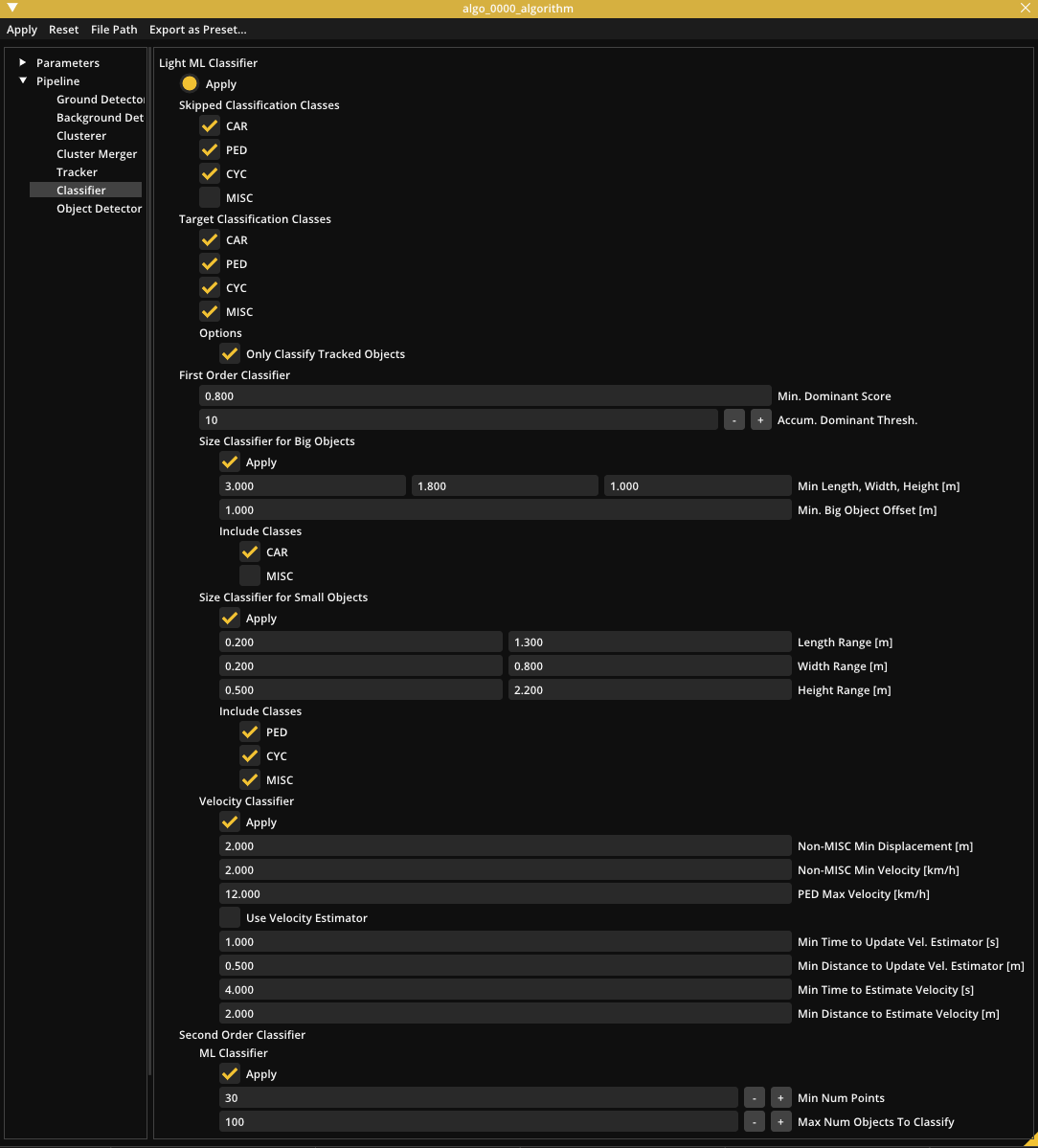
The object is classified as either CAR or MISC by Size Classifier for big Objects. If it moves at a speed 20km/h, it is not a MISC or a PED by Velocity Classifier. So it will be classified as a CAR. In case it’s not moving, ML Classifier will be used to determine if it’s a CAR or a MISC.
Dealing with limited computational resources
If running with multiple lidars or using a computational-resource-limited machine, you can improve the speed of the algorithm by:
- Optimize the detection range (prefered to common setting).
- Increase resolution values in
Pipeline > Clusterer. Resolution 0.1 x 0.1 means that points in a grid of size 0.1 x 0.1 will be grouped in one object. Increasing those values can help the clusterer run faster with the trade off that closed objects can be merged together. - Increase resolution values in
Pipeline > Background Detector > Range, Azimuth, Elevation. Increasing those values can help the Background Detector run faster with the trade off that objects which are closed to background can become background.
Rendering Config Editor
Rendering setting can be found in Preference > Visualizer (or press F11)
| Location | Name | Description | Default |
|---|---|---|---|
| Window | Default Window-Width | Initial width of the application window. | 1080 |
| Default Window-Height | Initial height of the application window. | 720 | |
| Visibility | Object Points | Enable or disable showing points belonging to objects. | True |
| Ground Point | Enable or disable showing ground points. (e.g. floor.) | True | |
| Background Points | Enable or disable showing background points. (e.g. wall or desk…) | True | |
| Draw Intensity Visualization | Enable this to color point-cloud by intensity values. The 'Publish Point-Cloud Intensity' option in Algorithm (Common) section must be turned on for this to work. | False | |
| Min/Max Point Intensity Range | Color range for intensity visualization. Intensity values outside of range will be clamped to the range. | [0.0, 255.0] | |
| Grid | Enable or disable showing squared Grid. | True | |
| Grid Circular | Enable or disable showing circular Grid. | False | |
| Axis | Enable or disable showing the world XYZ coordinate axis. | True | |
| Objects | Enable or disable showing tracked objects. (e.g. pedestrian) | True | |
| Misc Objects | Enable or disable showing miscellaneous objects. | True | |
| Validating Objects | Enable or disable showing validating objects. | True | |
| Drifting Objects | Enable or disable showing drifting objects. | True | |
| Invalidating Objects | Enable or disable showing invalidating objects. | True | |
| Object Trail | Enable or disable showing the object trail. | True | |
| Predicted Trajectory | Enable or disable showing the predicted trajectory of moving objects. | False | |
| Map Image | Enable or disable showing a map image. | True | |
| Detection Range | Enable or disable showing the detection range of each algo node. | True | |
| Points Outside of Detection Range | Enable or disable showing points outside of the detection range. | False | |
| Lidar Name | Enable or disable showing the name of each sensor. | False | |
| Lidar Topic | Enable or disable showing the topic of each sensor. | False | |
| Algo Node Name | Enable or disable showing the name of each algo node. | False | |
| Zone Name | Enable or disable showing the name of each zone. | False | |
| Draw Annotations | Enable or disable drawing object annotations | False | |
| Visible Annotations -> Show Object ID | If object annotations are enabled the object’s ID is shown | True | |
| Visible Annotations -> Show Object Class and Probability | If object annotations are enabled the object’s class and probability score of that class is shown | False | |
| Visible Annotations -> Show Object Speed | If object annotations are enabled the object’s speed is shown | True | |
| Visible Annotations -> Show Object Height | If object annotations are enabled the object’s height is shown | False | |
| Color | Background Color | Color of the background. | - |
| Ground Color | Color of the ground points. | - | |
| Background Color | Color of the background points. | - | |
| Object Color | Color of points belonging to objects. | - | |
| Car Color | Color of cars. | - | |
| Pedestrian Color | Color of pedestrians. | - | |
| Cyclist Color | Color of cyclists. | - | |
| Misc Color | Color of miscellaneous objects. | - | |
| Event Zone Color | Color of event zones. | - | |
| Exclusion Zone Color | Color of exclusion zones. | - | |
| Detection Range Color | Color of the detection range outline. | - | |
| View Range | Min point height | Minimum height to show points (Unit: meters) The point lower than this value will not be shown even if you enabled Env. Points ON. | -10.0 |
| Max point height | Maximum height to show points (Unit: meters) The point higher than this value will not be shown even if you enabled Env. Points ON. | 10.0 | |
| Misc | Cloud Point Size | Control the visual size of the rendered points. The values can range from 1.0 to 10.0. | 1.0 |
| Use Random Obj. Color | This option colors each object in a different color. | False |